4.19. x86, AMD64, and Intel® 64 Boot Loader Configuration
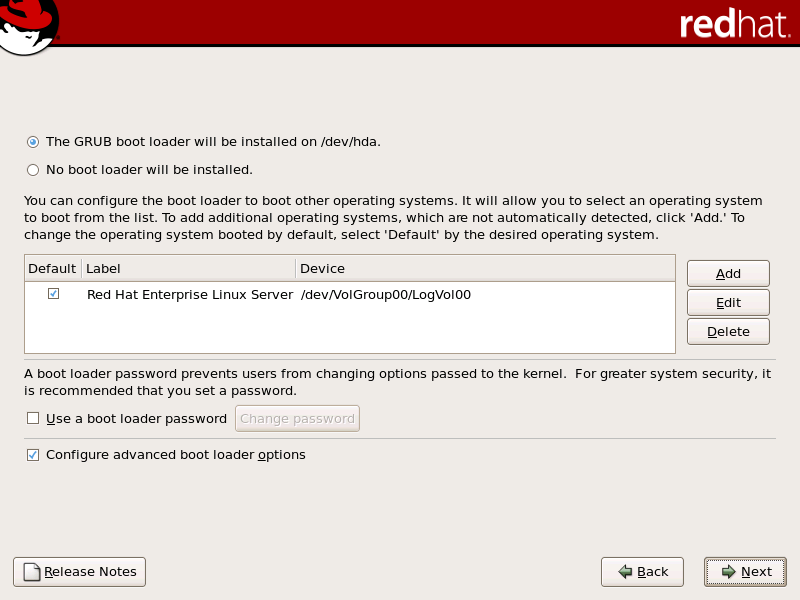
To boot the system without boot media, you usually need to install a boot loader. A boot loader is the first software program that runs when a computer starts. It is responsible for loading and transferring control to the operating system kernel software. The kernel, in turn, initializes the rest of the operating system.
GRUB (GRand Unified Bootloader), which is installed by default, is a very powerful boot loader. GRUB can load a variety of free operating systems, as well as proprietary operating systems with chain-loading (the mechanism for loading unsupported operating systems, such as DOS or Windows, by loading another boot loader).
If you do not want to install GRUB as your boot loader, click
Change boot loader
, where you can choose not to install a boot loader at all.
If you already have a boot loader that can boot Red Hat Enterprise Linux and do not want to overwrite your current boot loader, choose
Do not install a boot loader
by clicking on the
Change boot loader
button.
Warning
If you choose not to install GRUB for any reason, you will not be able to boot the system directly, and you must use another boot method (such as a commercial boot loader application). Use this option only if you are sure you have another way of booting the system!
Every bootable partition is listed, including partitions used by other operating systems. The partition holding the system's root file system has a
Label
of Red Hat Enterprise Linux (for GRUB). Other partitions may also have boot labels. To add or change the boot label for other partitions that have been detected by the installation program, click once on the partition to select it. Once selected, you can change the boot label by clicking the
Edit
button.
Select
Default
beside the preferred boot partition to choose your default bootable OS. You cannot move forward in the installation unless you choose a default boot image.
Note
The
Label
column lists what you must enter at the boot prompt, in non-graphical boot loaders, in order to boot the desired operating system.
Once you have loaded the GRUB boot screen, use the arrow keys to choose a boot label or type
e
for edit. You are presented with a list of items in the configuration file for the boot label you have selected.
Boot loader passwords provide a security mechanism in an environment where physical access to your server is available.
If you are installing a boot loader, you should create a password to protect your system. Without a boot loader password, users with access to your system can pass options to the kernel which can compromise your system security. With a boot loader password in place, the password must first be entered before selecting any non-standard boot options. However, it is still possible for someone with physical access to the machine to boot from a diskette, CD-ROM, or USB media if the BIOS supports it. Security plans which include boot loader passwords should also address alternate boot methods.
If you choose to use a boot loader password to enhance your system security, be sure to select the checkbox labeled
Use a boot loader password
.
Once selected, enter a password and confirm it.
To configure more advanced boot loader options, such as changing the drive order or passing options to the kernel, be sure
Configure advanced boot loader options
is selected before clicking
Next
.
4.19.1. Advanced Boot Loader Configuration
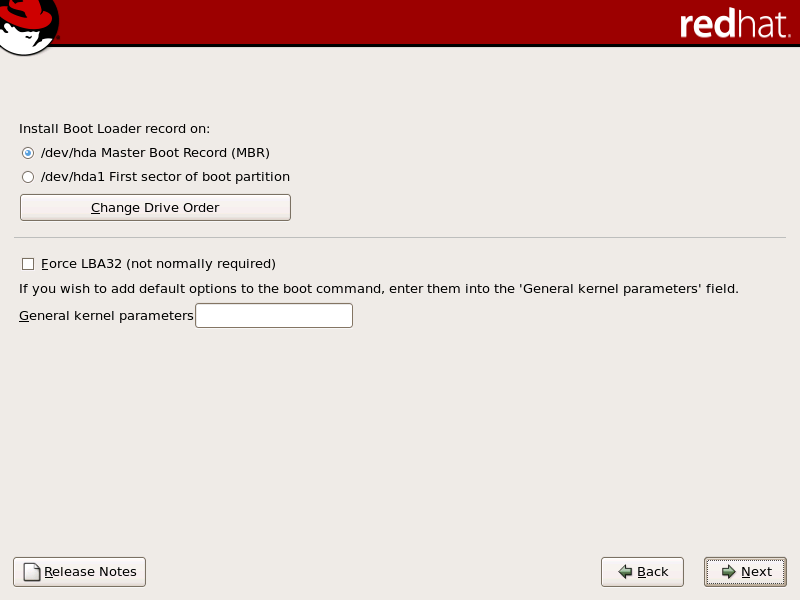
Now that you have chosen which boot loader to install, you can also determine where you want the boot loader to be installed. You may install the boot loader in one of two places:
-
The master boot record (MBR) — This is the recommended place to install a boot loader, unless the MBR already starts another operating system loader, such as System Commander. The MBR is a special area on your hard drive that is automatically loaded by your computer's BIOS, and is the earliest point at which the boot loader can take control of the boot process. If you install it in the MBR, when your machine boots, GRUB presents a boot prompt. You can then boot Red Hat Enterprise Linux or any other operating system that you have configured the boot loader to boot.
-
The first sector of your boot partition — This is recommended if you are already using another boot loader on your system. In this case, your other boot loader takes control first. You can then configure that boot loader to start GRUB, which then boots Red Hat Enterprise Linux.
Note
If you have a RAID card, be aware that some BIOSes do not support booting from the RAID card. In cases such as these, the boot loader
should not
be installed on the MBR of the RAID array. Rather, the boot loader should be installed on the MBR of the same drive as the /boot/ partition was created.
If your system only uses Red Hat Enterprise Linux, you should choose the MBR.
Click the
Change Drive Order
button if you would like to rearrange the drive order or if your BIOS does not return the correct drive order. Changing the drive order may be useful if you have multiple SCSI adapters, or both SCSI and IDE adapters, and you want to boot from the SCSI device.
The
Force LBA32 (not normally required)
option allows you to exceed the 1024 cylinder limit for the /boot/ partition. If you have a system which supports the LBA32 extension for booting operating systems above the 1024 cylinder limit, and you want to place your /boot/ partition above cylinder 1024, you should select this option.
Note
While partitioning your hard drive, keep in mind that the BIOS in some older systems cannot access more than the first 1024 cylinders on a hard drive. If this is the case, leave enough room for the /boot Linux partition on the first 1024 cylinders of your hard drive to boot Linux. The other Linux partitions can be after cylinder 1024.
In parted, 1024 cylinders equals 528MB. For more information, refer to:
https://www.pcguide.com/ref/hdd/bios/sizeMB504-c.html
To add default options to the boot command, enter them into the
Kernel parameters
field. Any options you enter are passed to the Linux kernel every time it boots.