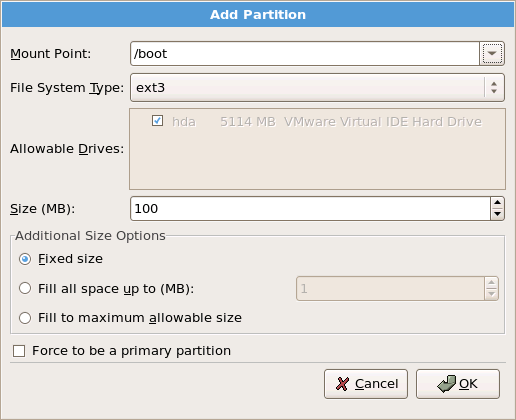
Mount Point: Enter the partition's mount point. For example, if this partition should be the root partition, enter /; enter /boot for the /boot partition, and so on. You can also use the pull-down menu to choose the correct mount point for your partition. For a swap partition the mount point should not be set - setting the filesystem type to swap is sufficient.
File System Type: Using the pull-down menu, select the appropriate file system type for this partition. For more information on file system types, refer to Section 4.18.5.1, “File System Types”.
Allowable Drives: This field contains a list of the hard disks installed on your system. If a hard disk's box is highlighted, then a desired partition can be created on that hard disk. If the box is not checked, then the partition will never be created on that hard disk. By using different checkbox settings, you can have Disk Druid place partitions where you need them, or let Disk Druid decide where partitions should go.
Size (MB): Enter the size (in megabytes) of the partition. Note, this field starts with 100 MB; unless changed, only a 100 MB partition will be created.
Additional Size Options: Choose whether to keep this partition at a fixed size, to allow it to "grow" (fill up the available hard drive space) to a certain point, or to allow it to grow to fill any remaining hard drive space available.
If you choose Fill all space up to (MB), you must give size constraints in the field to the right of this option. This allows you to keep a certain amount of space free on your hard drive for future use.
OK: Select OK once you are satisfied with the settings and wish to create the partition.
Cancel: Select Cancel if you do not want to create the partition.
4.18.5.1. File System Types
Red Hat Enterprise Linux allows you to create different partition types, based on the file system they will use. The following is a brief description of the different file systems available, and how they can be utilized.
ext2 — An ext2 file system supports standard Unix file types (regular files, directories, symbolic links, etc). It provides the ability to assign long file names, up to 255 characters.
ext3 — The ext3 file system is based on the ext2 file system and has one main advantage — journaling. Using a journaling file system reduces time spent recovering a file system after a crash as there is no need to fsck[2] the file system. The ext3 file system is selected by default and is highly recommended.
physical volume (LVM) — Creating one or more physical volume (LVM) partitions allows you to create an LVM logical volume. LVM can improve performance when using physical disks. For more information regarding LVM, refer to the Red Hat Enterprise Linux Deployment Guide.
software RAID — Creating two or more software RAID partitions allows you to create a RAID device. For more information regarding RAID, refer to the chapter RAID (Redundant Array of Independent Disks) in the Red Hat Enterprise Linux Deployment Guide.
swap — Swap partitions are used to support virtual memory. In other words, data is written to a swap partition when there is not enough RAM to store the data your system is processing. Refer to the Red Hat Enterprise Linux Deployment Guide for additional information.
vfat — The VFAT file system is a Linux file system that is compatible with Microsoft Windows long filenames on the FAT file system. This file system must be used for the /boot/efi/ partition on Itanium systems.
[2]
The fsck application is used to check the file system for metadata consistency and optionally repair one or more Linux file systems.